
AI in QA Testing: How I Built a Local AI Workflow That Speeds Up Grunt Work
Development
Reading time
4
mins

In this article, I wanted to share how AI fits into my day-to-day QA work, what it does, and the lines I keep it inside.
If you want the short version, I use AI as a drafting and research assistant inside a controlled process.
It helps me get through the routine prep work faster, like searching through project notes for background details and putting together initial drafts so I do not have to start from scratch.
That saves me a lot of time on the daily writing and digging, but at the end of the day AI does not decide what passes, what ships, or what gets filed.
I read, edit, and own every single piece of output before it ever reaches a developer or gets turned into an official report.
Here is how that looks.
My ground rules for using AI in QA
Human sign-off on everything
The AI might draft my test plans, bug reports, and review comments, but I read, edit, and take full responsibility for every single word before it ever reaches a developer or gets logged in Jira.
Testing early at the review stage
Instead of waiting for new changes to land in a shared testing environment, I test them right away on the developer's branch while the code is still under review.
That way, any issues get caught and fixed immediately before they ever merge into the main development line.
Verify before claiming a bug
Before I write up a report, I check the actual code to confirm the problem is real rather than just assuming.
If it turns out to be expected behaviour or a known limitation, I drop it and nothing gets filed.
Local environments only
All automated browser testing runs strictly on my own machine against a local server. The tools are blocked from touching shared team environments or live production systems.
Real customer data is off-limits
I generate dummy test data inside my local database directly through the backend. I never let the tool click around in a shared environment to create records.
Plain text under my control
Everything the AI outputs gets saved as simple text files inside my personal note taking app. That keeps all my testing notes human-readable, easy to review, and completely in my hands.
My local AI testing setup
Claude Code running inside VS Code The assistant works in the project repository and my notes vault, not in any live company system.
A set of custom commands I wrote (plain-text definition files I own and can edit). Each one is scoped to a single QA task with its own rules and guardrails baked in. See the table below.
An Obsidian vault as my system of record: one test plan per ticket and a glossary of platform terms.
A local backend (a copy of the platform running on my own machine) for staging test data and reproducing issues safely.
A command-line browser driver for live runs When a command needs to open the running app, to walk through a test case from a plan or to reproduce and verify an issue, it drives the browser with playwright-cli (a terminal tool), not the heavier Playwright MCP integration. It runs against my local server only, under the same limits as everything else.
Command | What the AI does | My checkpoint |
|---|---|---|
/qa-review | Reads the branch changes, the pull request, and the Jira ticket, then writes a single test plan per ticket (analysis plus ready-to-run test cases) into the vault. | I run the manual testing pass myself. The AI writes the plan; it does not decide pass or fail. |
/seed-env | Stages ticket-specific test data in my local database through the backend, verifies it through the real API, and saves it as a reusable scenario plus a snapshot. | I decide what data the scenario needs. Runs locally only, never against shared environments. |
/live-run | Drives the riskiest one to three cases from the test plan against the running local app with | A quick pre-pass before my full manual run, local only. It flags what looks off; it never files anything or makes the pass/fail call. I still do the real testing pass. |
/bug-report | Confirms the bug is real by reading the code first, then drafts a Jira report in my house format. | I set the priority, attach my own screenshots/recordings, and file it. No report is written for a non-bug. |
/pr-comment | Drafts a review comment for a developer's pull request. | Optional. Commenting on the PR for a regression is mandatory; I reach for this only when the issue is hard to put in simple terms. I review and paste it into GitHub myself and attach the visual evidence. |
/pw-test | Drafts an automated end-to-end test matching the existing suite's conventions. | Only when I ask. I run the test myself and review the code. |
/playground | Builds a local sandbox project (sample data) for exploratory testing. | Local only, no ticket, throwaway data. |
How the work stays organised
A central dashboard for every test plan
Every test plan feeds into a single tracking board with one row per ticket.
I group them by feature area, but I can also filter by update types like bug fixes, new features, and refactors, or sort by what was tested most recently.
Nothing gets scattered across random folders, and the entire testing history stays searchable in one place.
A shared glossary to keep terminology accurate
To stop the AI from making up generic wording, I keep a dedicated glossary of platform terms inside my workspace.
Whenever a command runs, it checks those exact definitions so every test plan and bug report matches the exact language our engineering team actually uses.
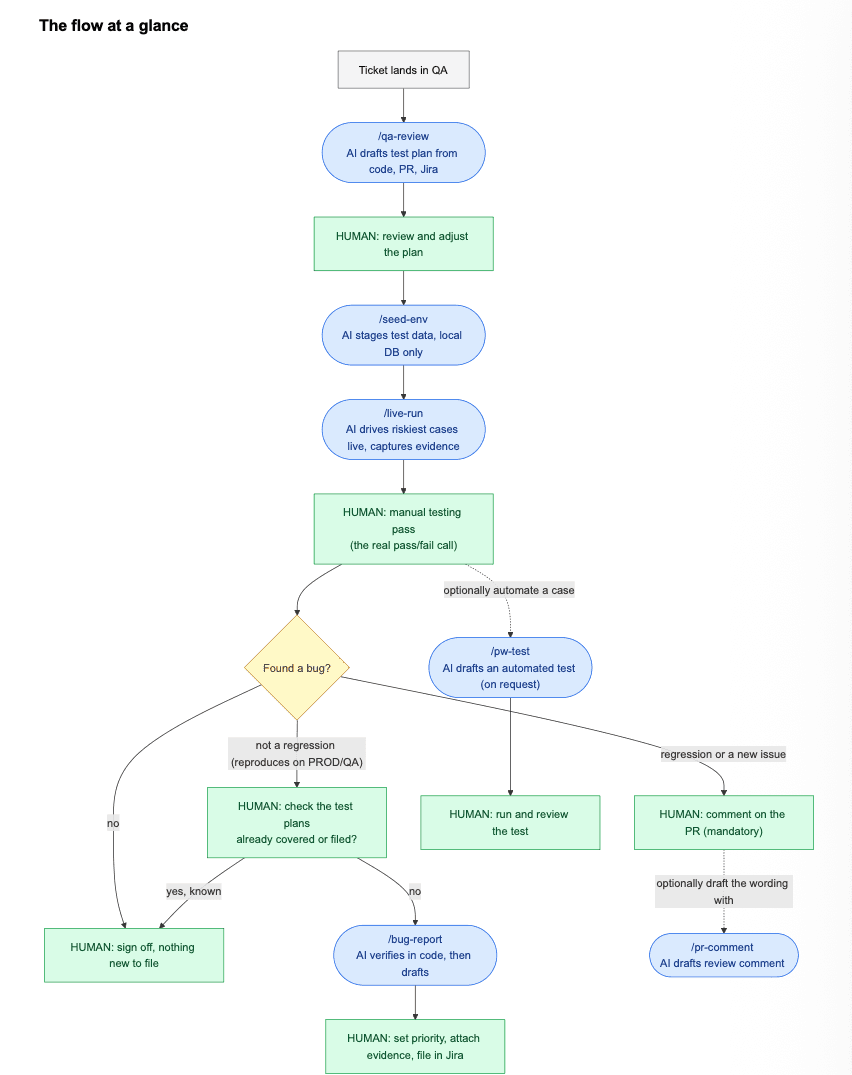
Let's look at a real ticket from start to finish
This is the typical path a ticket takes through my workflow, showing exactly where AI helps and where I take over.
1. A ticket lands in QA
I check out the developer's branch and run /qa-review.
The AI reads the code changes, the pull request discussion, and the acceptance criteria from Jira, then writes a test plan into my vault: what changed in plain language, where to test it, and a prioritised list of test cases. I read it and adjust it before I trust it.
2. I stage the data
If the plan needs specific conditions, I run /seed-env to set that up in my local database and snapshot it.
The setup is saved as a reusable recipe (one file per ticket) that I can re-run straight from the terminal whenever I need that data again, without going back through the assistant. Nothing leaves my machine.
3. I run a quick live pre-pass
I run /live-run to drive the riskiest one to three cases through the running local app and capture evidence screenshots of the states most likely to break (loading spinner, error, empty, disabled).
It reports observed versus expected and leaves me a labelled folder of screenshots.
This is a sanity sweep, not the verdict: it surfaces obvious breakage early but never decides pass or fail, and it runs against my local server only.
4. I test, by hand
I work through the cases in the plan against my local environment or on the PR Preview URL. This is human testing.
The AI is not clicking through and grading itself as in the previous step. If a case is worth automating, I optionally run /pw-test to draft an end-to-end test for it, then run and review that test myself.
5. If I find something broken
I first check whether it reproduces on the shared QA and/or production environment. If it does, it is a pre-existing bug.
Before filing, I check my test plans to see whether the issue is already covered or filed; if it is, it is a known issue and I do not raise a duplicate.
If it is new, I run /bug-report: the AI confirms the behaviour against the code and drafts a Jira report, and I set the priority, attach my evidence, and file it in Jira myself.
If it does not, it is a regression or new issue this branch introduced, so I leave a comment on the pull request flagging it. That comment is mandatory; the /pr-comment command is not.
Putting the problem in clear, simple terms is the hard part, so I sometimes use /pr-comment to draft the wording, but either way I post it on the pull request myself.
What stays entirely human
Deciding whether something is actually a defect versus expected behaviour.
Judging severity and assigning priority on bug reports.
The actual manual testing pass and the final pass/fail call.
Sign-off before anything reaches a developer, a pull request, or Jira.
Choosing what to automate and reviewing the test code.
Data and environment handling
Browser automation is restricted to http://localhost:3000. It is barred from the shared DEV and QA environments and from production by the
rules written into every command. If the local environment is not running, the tools stop rather than reach for a remote URL.
Test data is created through the backend on my local machine only. It is never created by automating a shared environment, and it is never
committed to the repository.
AI writes notes only where it is told to (test plans go in one folder, screenshots go to a temporary location, never into the vault by accident).
Why this works
The commands are not a black box. Each one is a short, readable text file describing what the AI may and may not do, which I wrote and can change at any time.
The output is plain Markdown I review before use.
The net effect is that I spend less time on the mechanical parts (reading diffs, drafting boilerplate reports, setting up data) and more on the judgement that actually needs a tester: deciding what to test, what is broken, and how much it matters.

Alen Suša, QA Engineer